The CodeAuth API follows REST principles and only accepts HTTPS (no HTTP) requests to keep your data secure.
cURL.NETNode.jsPythonPHPGOJava
Rate Limit
All API requests has a rate limit of 2,400 request per project per minute (40 per project per second) except for the following:
- Session Info request are rate limited to 1,200 request per project per minute (20 per project per second). If you need to overcome this limit, we recommend caching info data or use our SDK which has caching automatically built-in. Calls using cached data does not incur rate limits.
Flow
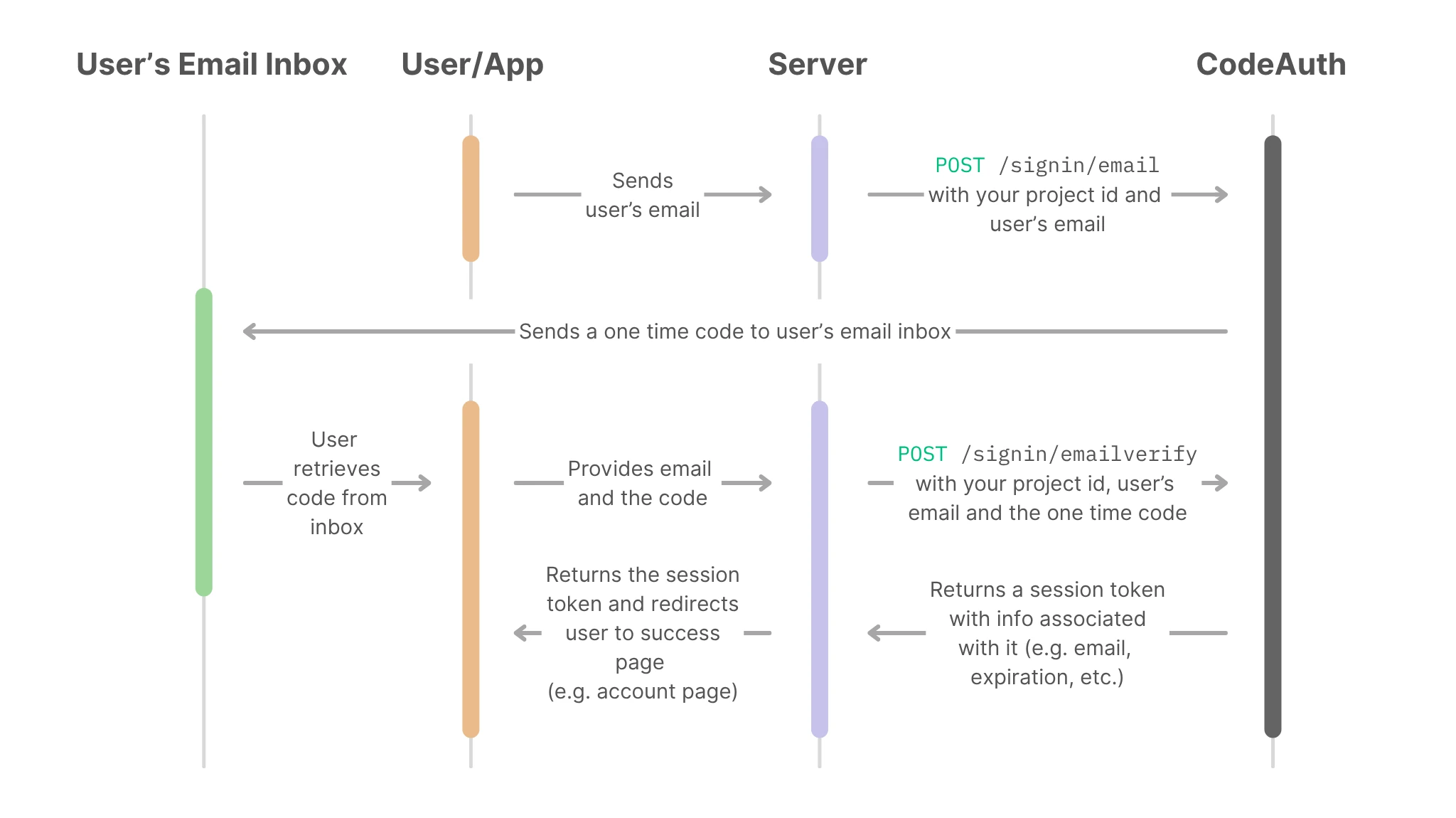
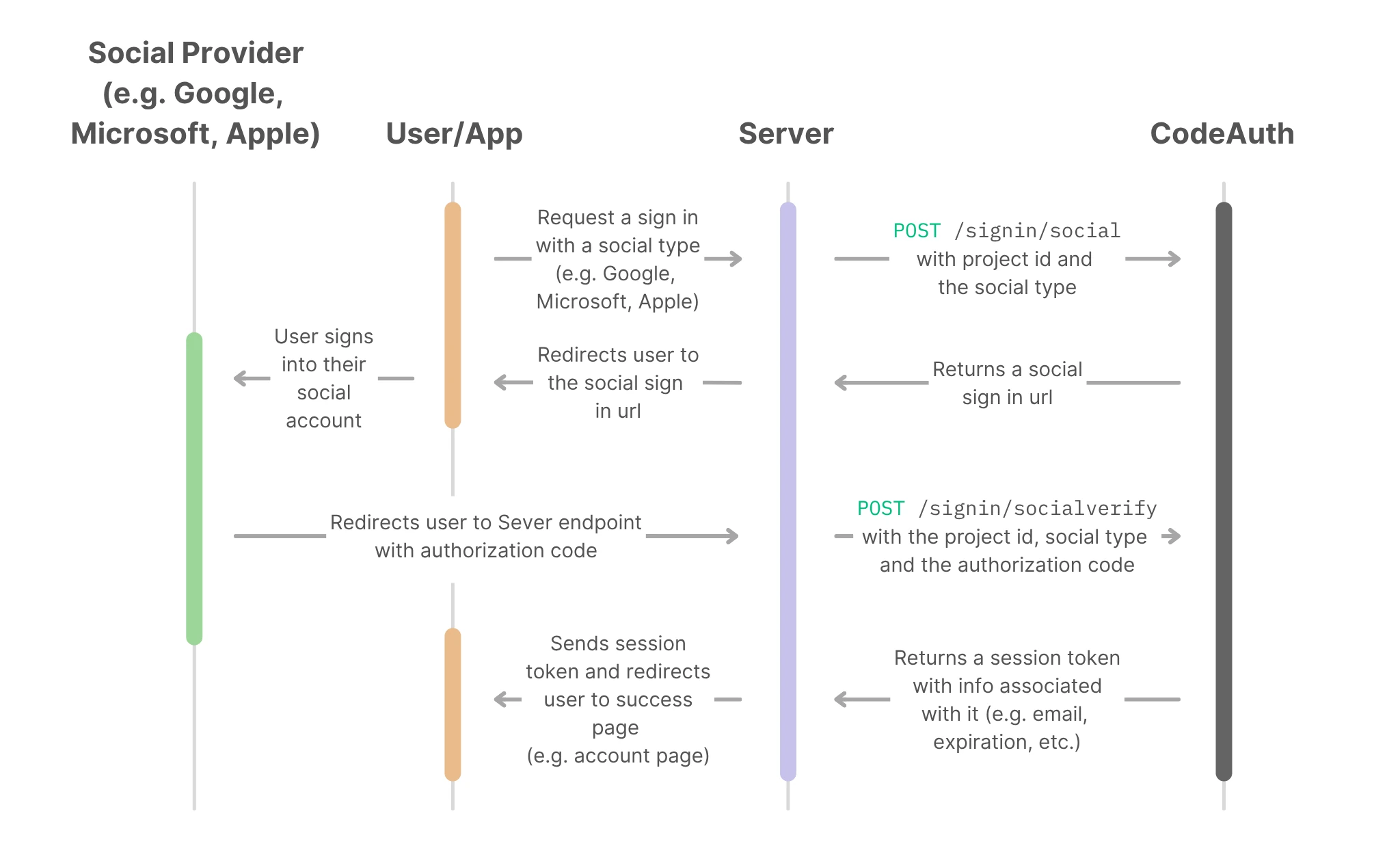
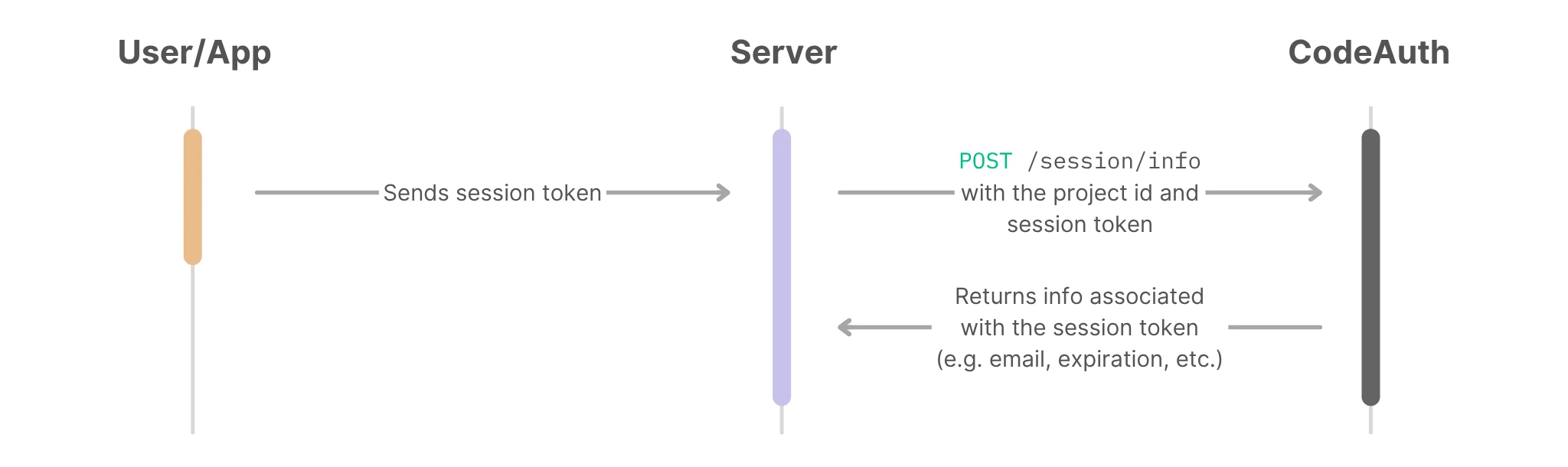
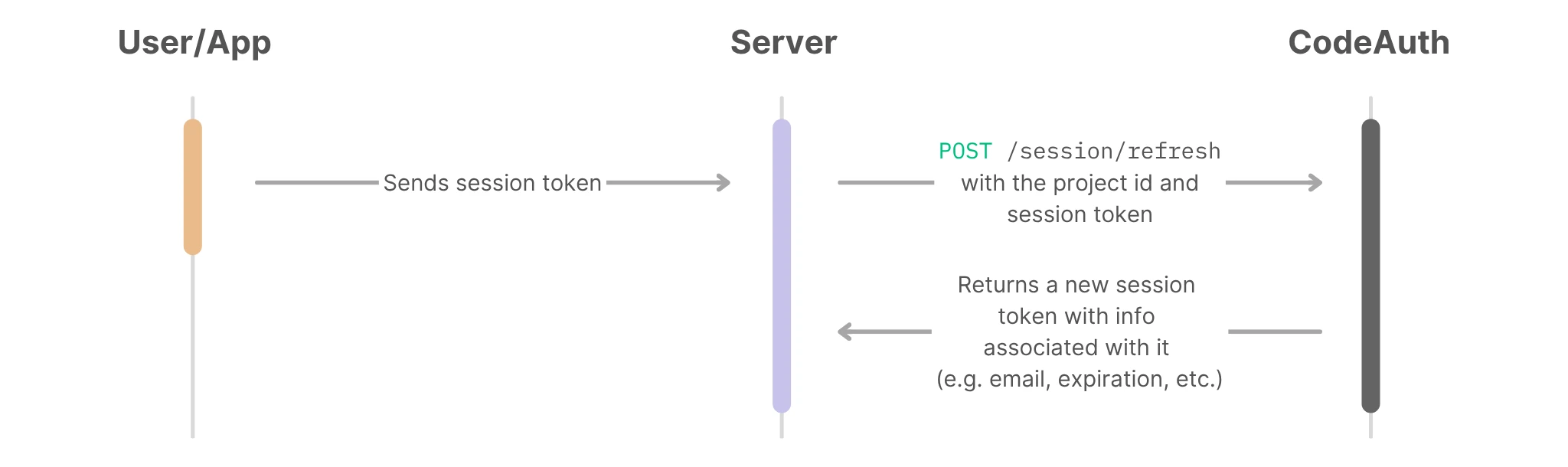
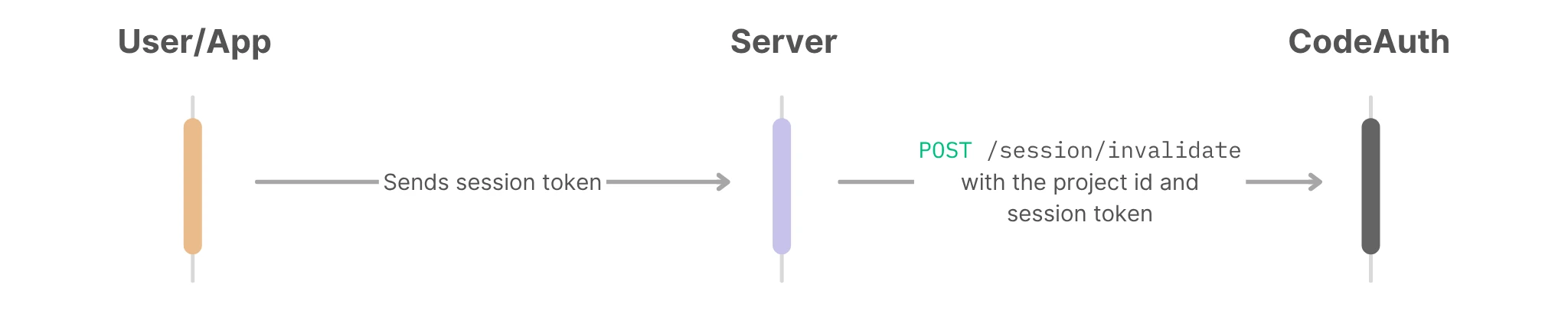
CodeAuth operates with a straightforward authentication process. The following sequence diagram references are just recommendations.
Sign in with user's email address
Sign in with user's social account
Get info about a session token
Refresh a session token
Invalidate a session token
Email
Begins the sign in or register flow by sending the user a one time code via email.
Request Body JSON
project_idstring | required
Your project id. This value can be found inside your project settings.
emailstring | required
The email of the user you are trying to sign in/up. Email must be between 1 and 64 characters long. The email must also only contain letter, number, dot (not first, last, or consecutive), underscore (not first or last) and/or hyphen (not first or last).
Response Success (200)
A success response will return an empty JSON object.
Response Error (400)
errorstring
The error type. Possible error types for this response:
bad_json
Your request body is not in the correct JSON format.
project_not_found
The project id is not valid or the account is out of credits.
bad_ip_address
Your IP address does not match with one of the allowed IP address inside the project setting.
rate_limit_reached
The rate limit has been reached for this request.
bad_email
The email is not formatted correctly.
code_request_interval_reached
A one time code for this email has already been requested within the code request interval time frame. You can change the code request interval in project settings.
code_hourly_limit_reached
The number of time a one time code sent to this email within an hour has already been reached. You can change the code hourly limit in project settings.
email_provider_error
Error involving your email provider. This is most likely caused by bad settings. Possible causes:
bad credentials
Double check to make sure API key(s) inside your project settings matches with the one on your email provider's site.
sender email error
This is a common mistake. Double check to make your 'Sender Email' is the correct domain and that it is verified on your email provider's site.
email server down
Occasionally, your email provider's server is down. Check to .
internal_error
There is a problem with the server that is not your fault.
test
200400
loading...
Email Verify
Checks if the one time code matches in order to create a session token.
Request Body JSON
project_idstring | required
Your project id. This can be found inside your project settings.
emailstring | required
The email of the user you are trying to sign in/up. Email must be between 1 and 64 characters long. The email must also only contain letter, number, dot (not first, last, or consecutive), underscore(not first or last) and/or hyphen(not first or last).
codestring | required
The one time code that was sent to the email.
Response Success (200)
session_tokenstring
The session token.
emailstring
The email associated with the session token. This is the same as the one you sent in your request body although it will be in lowercase.
expirationint64
The unix timestamp when the session token will expire.
refresh_leftint
Number of times this session token could still be refreshed.
Response Error (400)
errorstring
The error type. Possible error types for this response:
bad_json
Your request body is not in the correct JSON format.
project_not_found
The project id is not valid or the account is out of credits.
bad_ip_address
Your IP address does not match with one of the allowed IP address inside the project setting.
rate_limit_reached
The rate limit has been reached for this request.
bad_email
The email is not formatted correctly.
bad_code
The one time code either has expired or it does not match with the one sent to the email.
internal_error
There is a problem with the server that is not your fault.
test
200400
loading...
Social
Begins the sign in or register flow by allowing users to sign in through a social OAuth2 link.
Request Body JSON
project_idstring | required
Your project id. This value can be found inside your project settings.
social_typestring | required
The type of social OAuth2 url you are trying to create. Possible social types:
google
Create a Google social OAuth2 url.
microsoft
Create a Microsoft social OAuth2 url.
apple
Create an Apple social OAuth2 url.
Response Success (200)
signin_urlstring
A social sign-in url that the user can use to sign into their social account.
Response Error (400)
errorstring
The error type. Possible error types for this response:
bad_json
Your request body is not in the correct JSON format.
project_not_found
The project id is not valid or the account is out of credits.
bad_ip_address
Your IP address does not match with one of the allowed IP address inside the project setting.
rate_limit_reached
The rate limit has been reached for this request.
bad_social_type
The social type is not valid. Make sure the social type is from the list of possible social types.
internal_error
There is a problem with the server that is not your fault.
test
200400
loading...
Social Verify
This is the next step after the user signs in with their social account. This request checks the authorization code given by the social media company in order to create a session token.
Request Body JSON
project_idstring | required
Your project id. This value can be found inside your project settings.
social_typestring | required
The type of social OAuth2 url you are trying to verify. Possible social types:
google
Create a Google social OAuth2 url.
microsoft
Create a Microsoft social OAuth2 url.
apple
Create an Apple social OAuth2 url.
codestring | required
The authorization code given by the social. Each social has its own unique way to return the authorization code:
Google
Google appends the authorization code inside the query parameter of your redirect URL. The authorization code is the query parameter value for the key 'code'.
Microsoft
Microsoft appends the authorization code inside the query parameter of your redirect URL. The authorization code is the query parameter value for the key 'code'.
Apple
Apple appends the authorization code inside the POST body of your redirect URL. The authorization code is the 'application/x-www-form-urlencoded' parameter value for the key 'code'.
Response Success (200)
session_tokenstring
The session token.
emailstring
The email associated with the session token. The email is from the user's social account. Please note that Apple has a 'hide my email' feature that uses an alias to the real email address.
expirationint64
The unix timestamp when the session token will expire.
refresh_leftint
Number of times this session token could still be refreshed.
Response Error (400)
errorstring
The error type. Possible error types for this response:
bad_json
Your request body is not in the correct JSON format.
project_not_found
The project id is not valid or the account is out of credits.
bad_ip_address
Your IP address does not match with one of the allowed IP address inside the project setting.
rate_limit_reached
The rate limit has been reached for this request.
bad_social_type
The social type is not valid. Make sure the social type is from the list of possible social types.
bad_code
The authorization code is not valid.
internal_error
There is a problem with the server that is not your fault.
test
200400
loading...
Info
Gets the information associated with a session token.
Request Body JSON
project_idstring | required
Your project id. This value can be found inside your project settings.
session_tokenstring | required
The session token you are trying to get information on.
Response Success (200)
emailstring
The email associated with the session token.
expirationint64
The unix timestamp when the session token will expire.
refresh_leftint
Number of times this session token could still be refreshed.
Response Error (400)
errorstring
The error type. Possible error types for this response:
bad_json
Your request body is not in the correct JSON format.
project_not_found
The project id is not valid or the account is out of credits.
bad_ip_address
Your IP address does not match with one of the allowed IP address inside the project setting.
rate_limit_reached
The rate limit has been reached for this request.
bad_session_token
The session token is not valid or expired.
internal_error
There is a problem with the server that is not your fault.
test
200400
loading...
Refresh
Create a new session token using existing session token.
Request Body JSON
project_idstring | required
Your project id. This value can be found inside your project settings.
session_tokenstring | required
The session token you are trying to use to create a new token.
Response Success (200)
session_tokenstring
The new session token.
emailstring
The email associated with the session token.
expirationint64
The unix timestamp when the session token will expire.
refresh_leftint
Number of times this session token could still be refreshed.
Response Error (400)
errorstring
The error type. Possible error types for this response:
bad_json
Your request body is not in the correct JSON format.
project_not_found
The project id is not valid or the account is out of credits.
bad_ip_address
Your IP address does not match with one of the allowed IP address inside the project setting.
rate_limit_reached
The rate limit has been reached for this request.
bad_session_token
The session token is not valid or expired.
out_of_refresh
The session token can not be refreshed because it ran out of refresh left.
internal_error
There is a problem with the server that is not your fault.
test
200400
loading...
Invalidate
Invalidate a session token. By doing so, the session token can no longer be used for any api call.
Request Body JSON
project_idstring | required
Your project id. This value can be found inside your project settings.
session_tokenstring | required
The session token you are trying to use to invalidate.
invalidate_typestring | required
How to use the session token to invalidate. Possible invalidate types:
only_this
Remove only the session token you gave. e.g., used for logging a user out.
all
Remove all session tokens associated with the email that have the given session token. e.g., when deleting an account/email, remove all sessions associated with it.
all_but_this
Remove all session tokens associated with the email that have the given session token except for the given session token. e.g., logging out user from all other devices.
Response Success (200)
A success response will return an empty JSON object.
Response Error (400)
errorstring
The error type. Possible error types for this response:
bad_json
Your request body is not in the correct JSON format.
project_not_found
The project id is not valid or the account is out of credits.
bad_ip_address
Your IP address does not match with one of the allowed IP address inside the project setting.
rate_limit_reached
The rate limit has been reached for this request.
bad_session_token
The session token is not valid or expired.
bad_invalidate_type
The invalidate type is not valid. Make sure the invalidate type is from the list of possible invalidate types.
internal_error
There is a problem with the server that is not your fault.
test
200400
loading...
Set Up Google Sign In
You can enable users to sign up and sign in using their Google account. To set this up, you need a Google Cloud account.
Set Up Microsoft Sign In
You can enable users to sign up and sign in using their Microsoft account. To set this up, you need a Microsoft Azure account.
Configure a Microsoft OAuth2
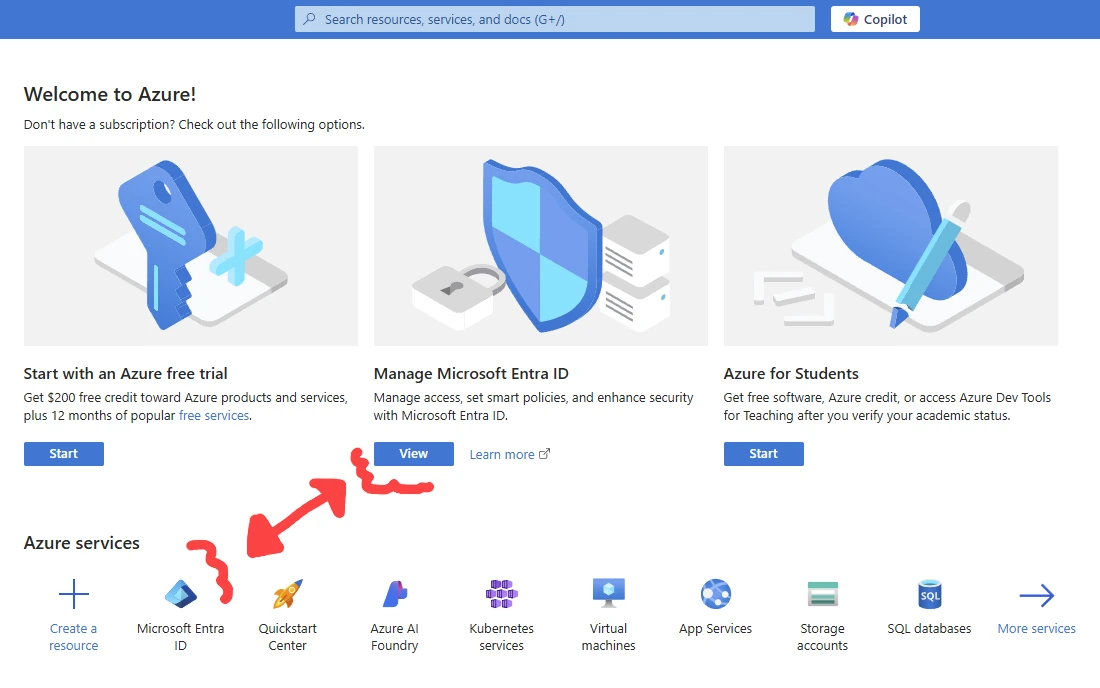
1. After signing into Azure dashboard, open up "Microsoft Entra ID"
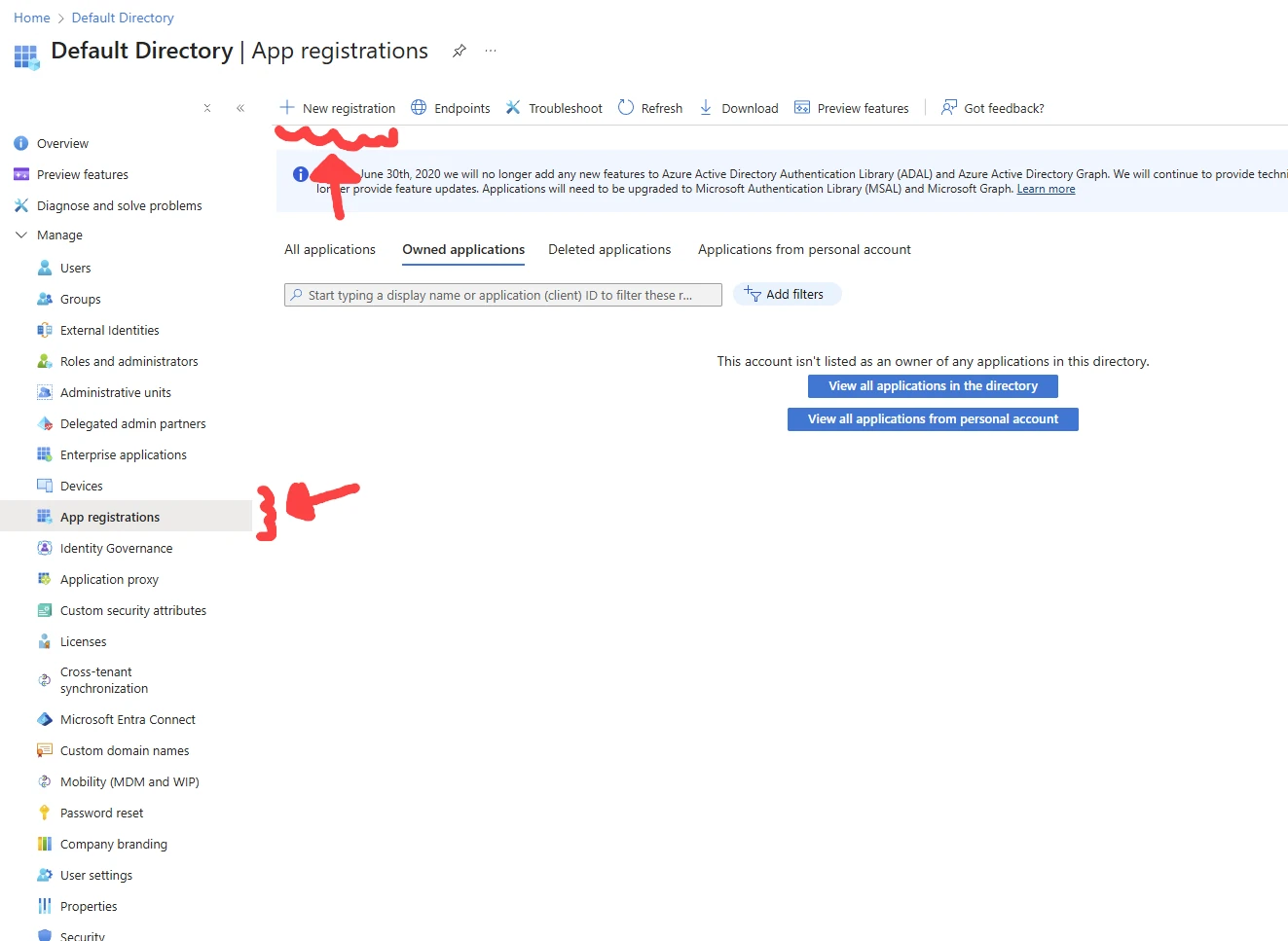
2. Click on "App registrations" in the side navigation bar and click on "New registration"
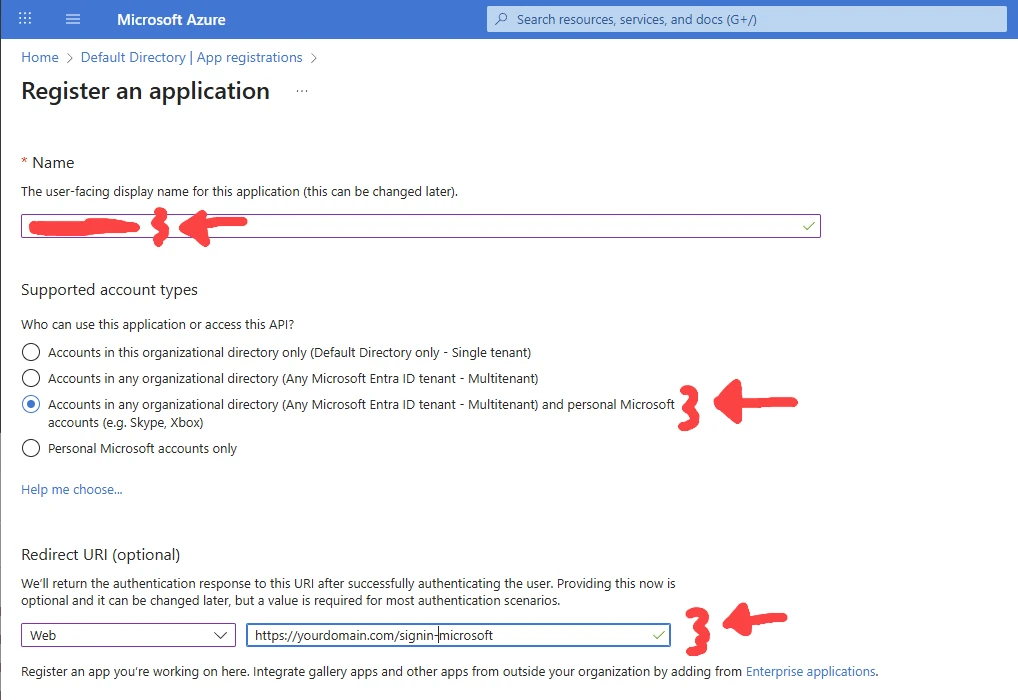
3. Enter a "name", select and enter a "Redirect URI". We recommend you enter an endpoint on your API ednpoint instead of redirecting to the frontend for better security practice. After it redirects to your API endpoint, you can redirect it back to the frontend. Enter the same URI to your CodeAuth project settings under the Microsoft social settings. Create the application.
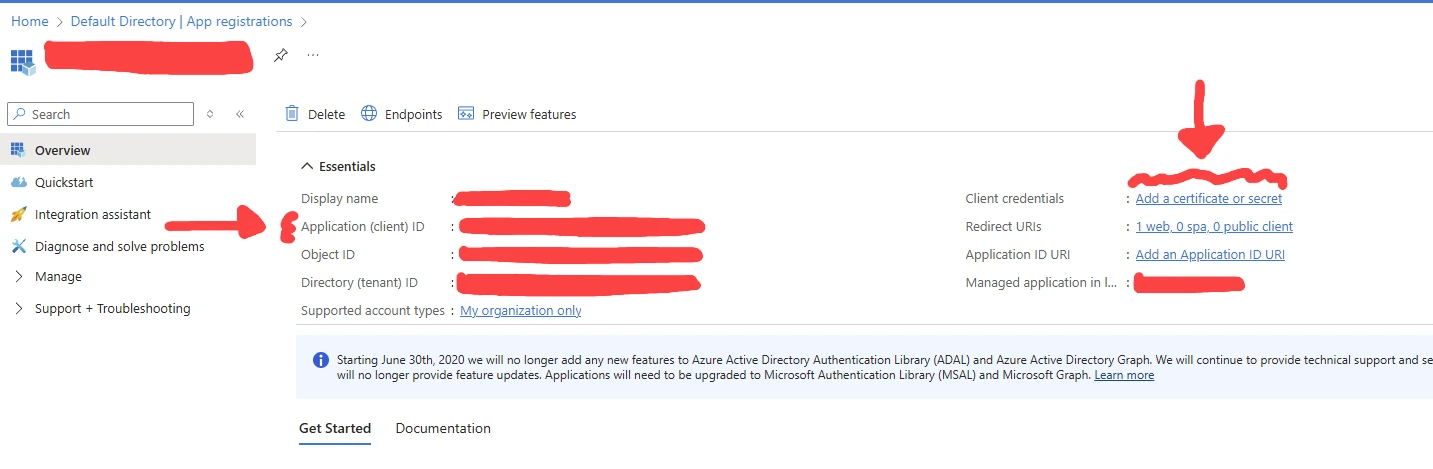
4. After creating the app, you'll see the "Application (client) ID". You should enter that value into your CodeAuth project settings under the Microsoft social settings. Once you are done, click on "Add a certificate or secret"
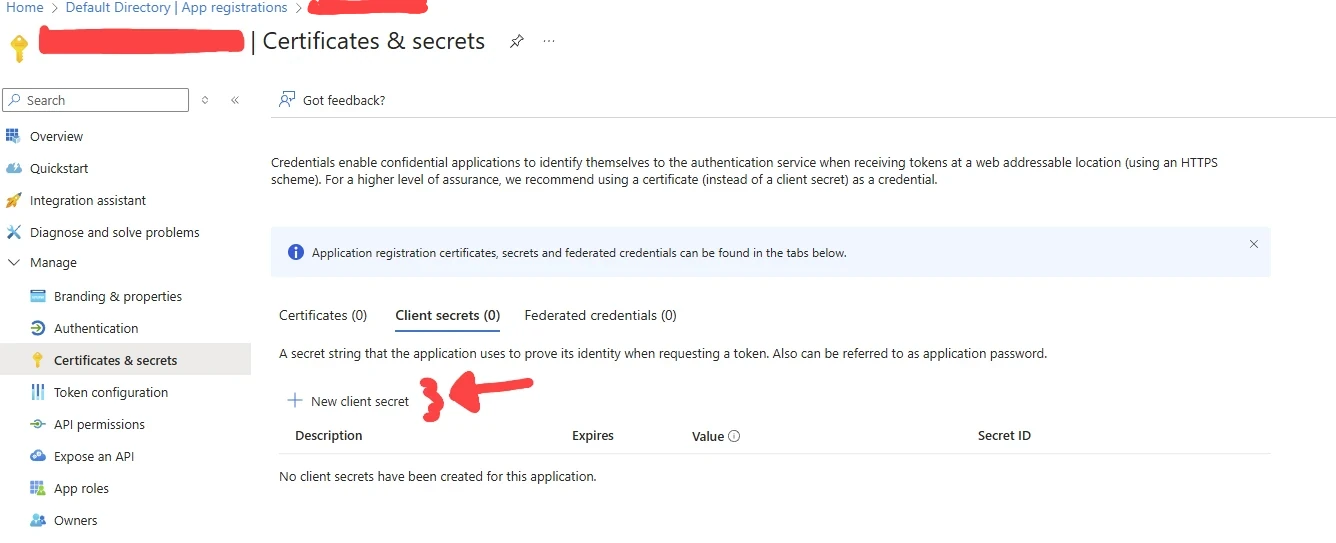
5. Click on "New client secret"
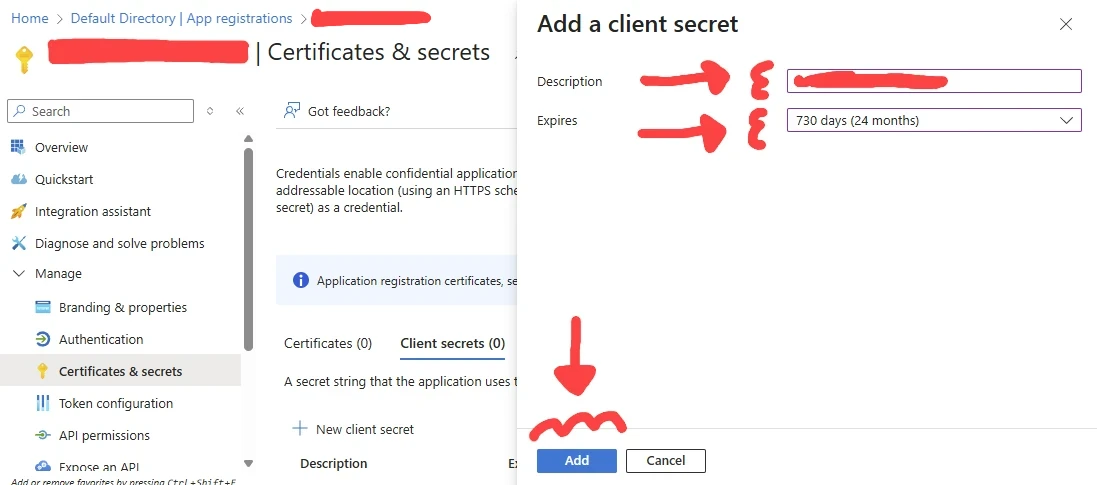
6. A popup will appear and enter a "Description" and set "Expires" to the longest period possible. Click "Add".
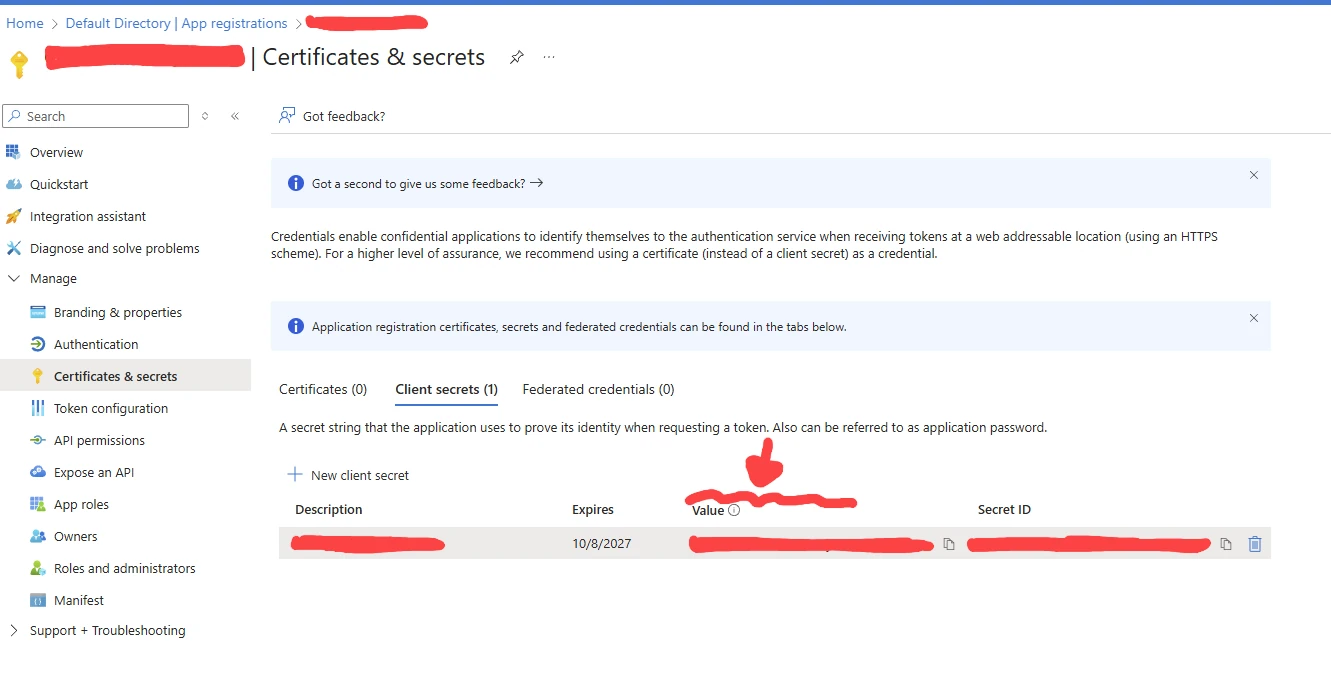
7. A client secret value will be generated. Add the client secret value to your CodeAuth project settings under the Microsoft social settings.
Set Up Apple Sign In
You can enable users to sign up and sign in using their Apple account. To set this up, you need an Apple Developer account.
Register an App ID
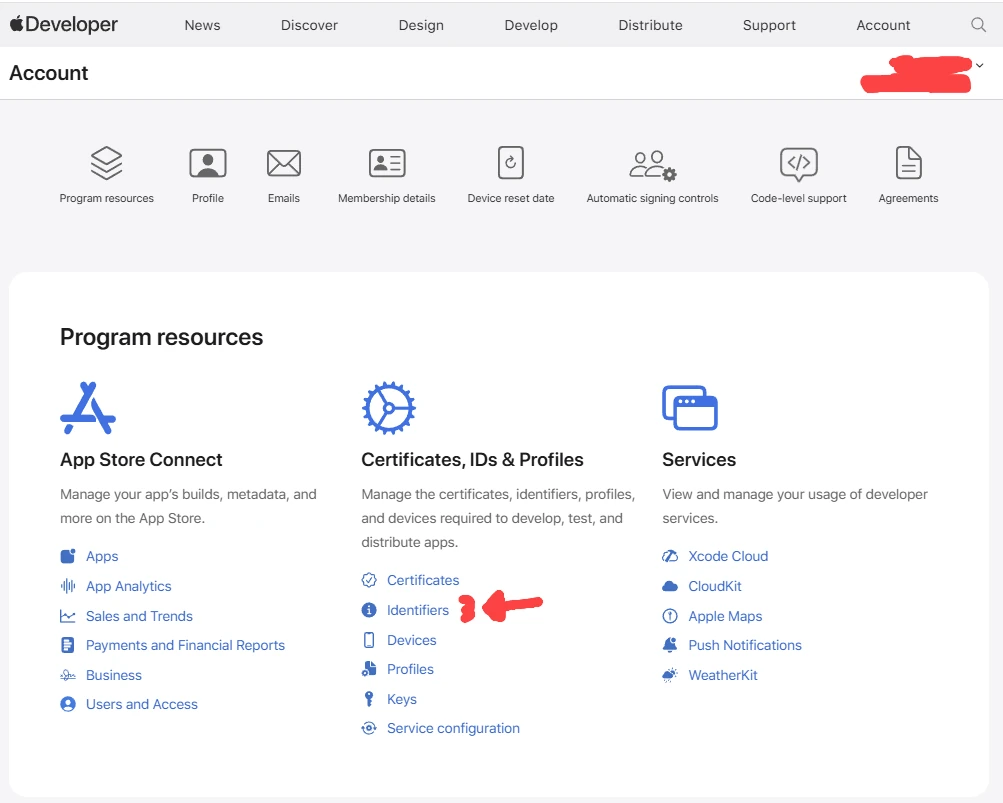
1. After signing into Apple Developer account, under "Certificates, IDs & Profiles", click on "Identifiers"
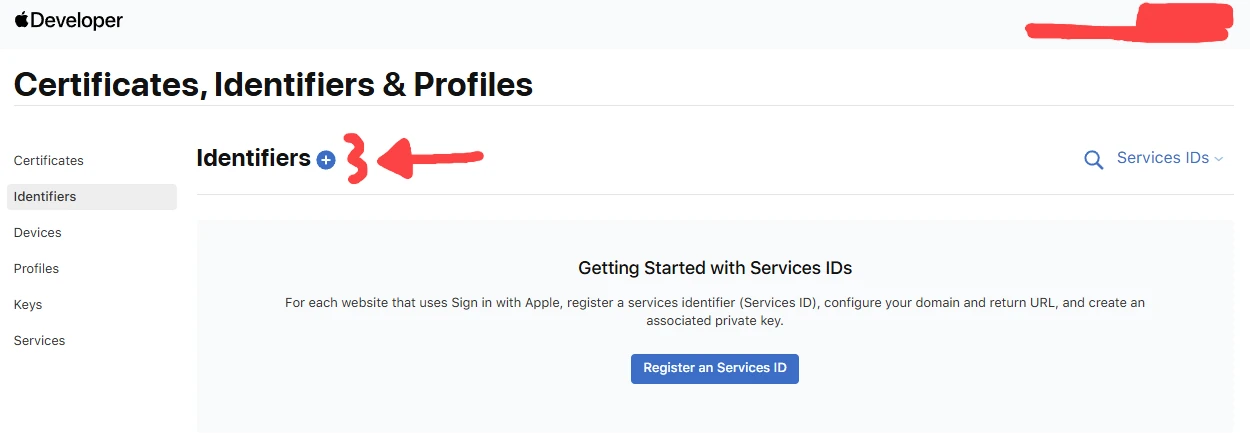
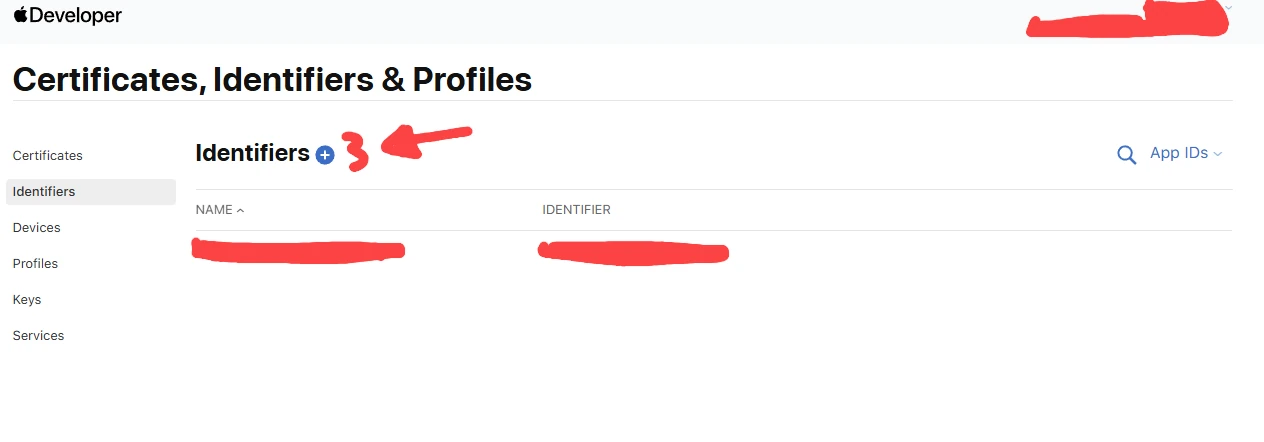
2. Click on the plus sign to create an identifier
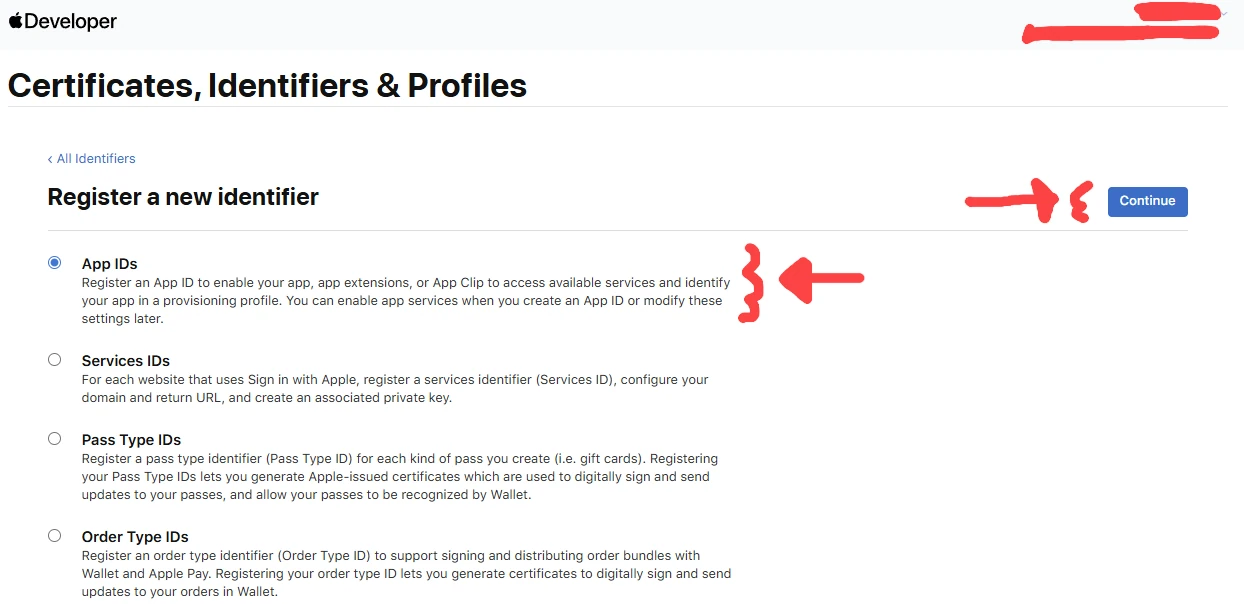
3. Select "App IDs" and click on "Continue"
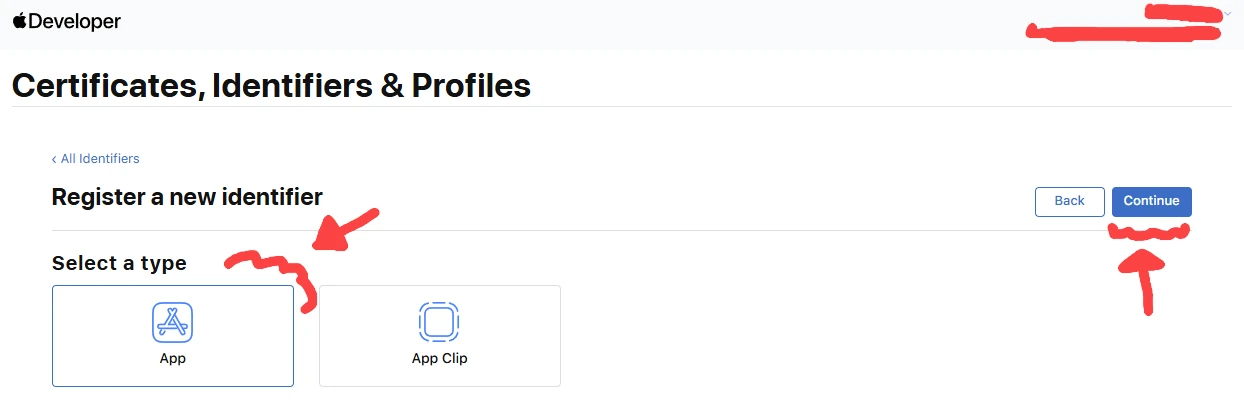
4. Select "App" for the type and click on "Continue"
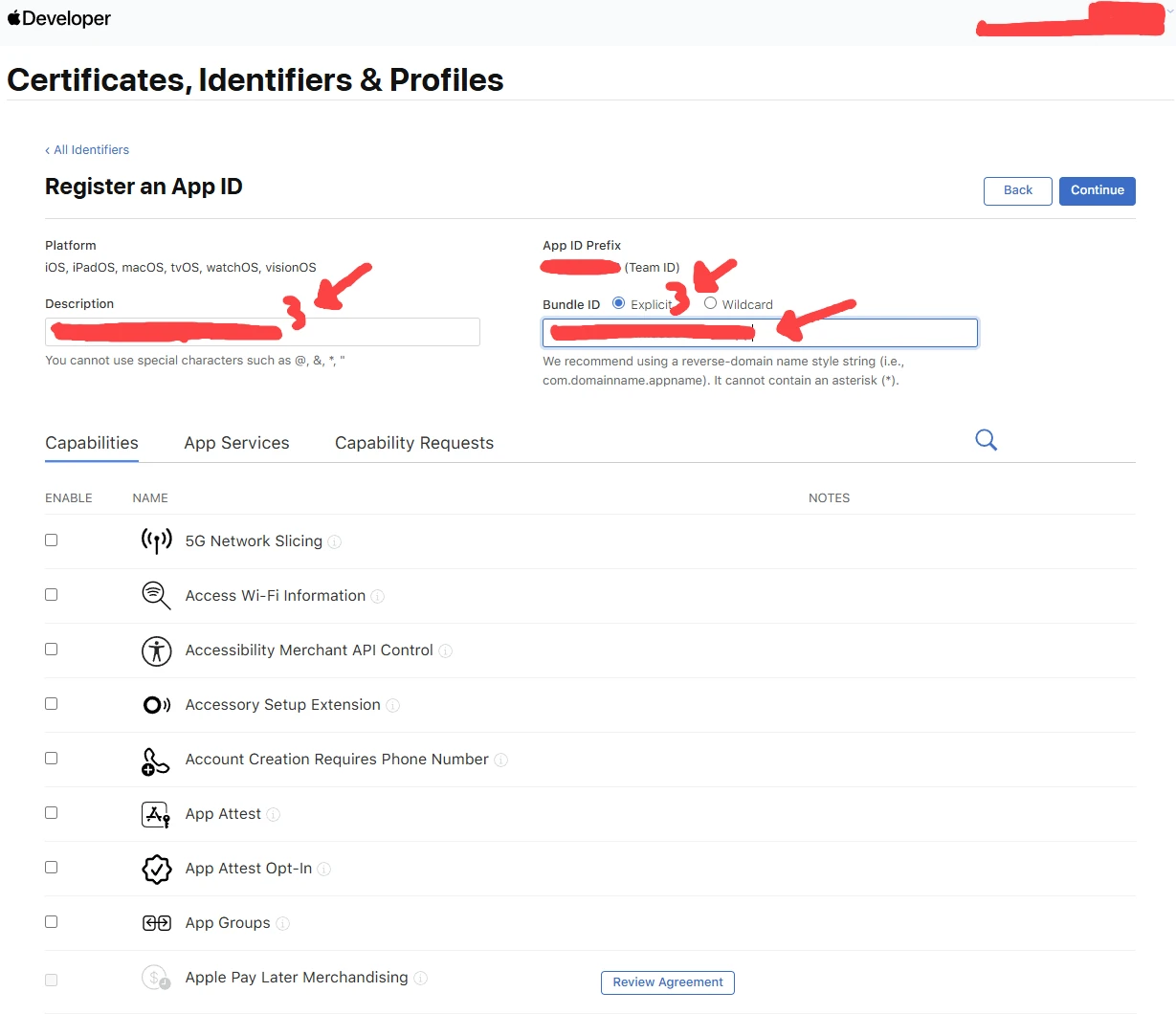
5. Enter a "Description" and an "Explicit" "Bundle ID"
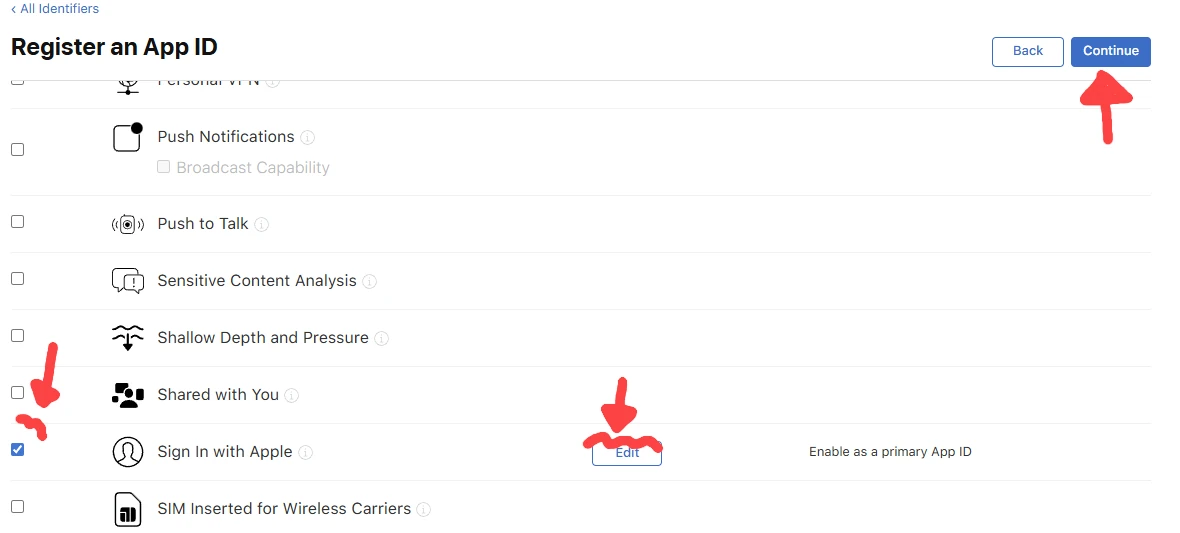
6. Scroll down and check on "Sign In with Apple" and click on "Edit". Once done, click on continue
Register a Services ID
7. After creating an App ID, you'll need to create a Services ID. Click on the plus sign.
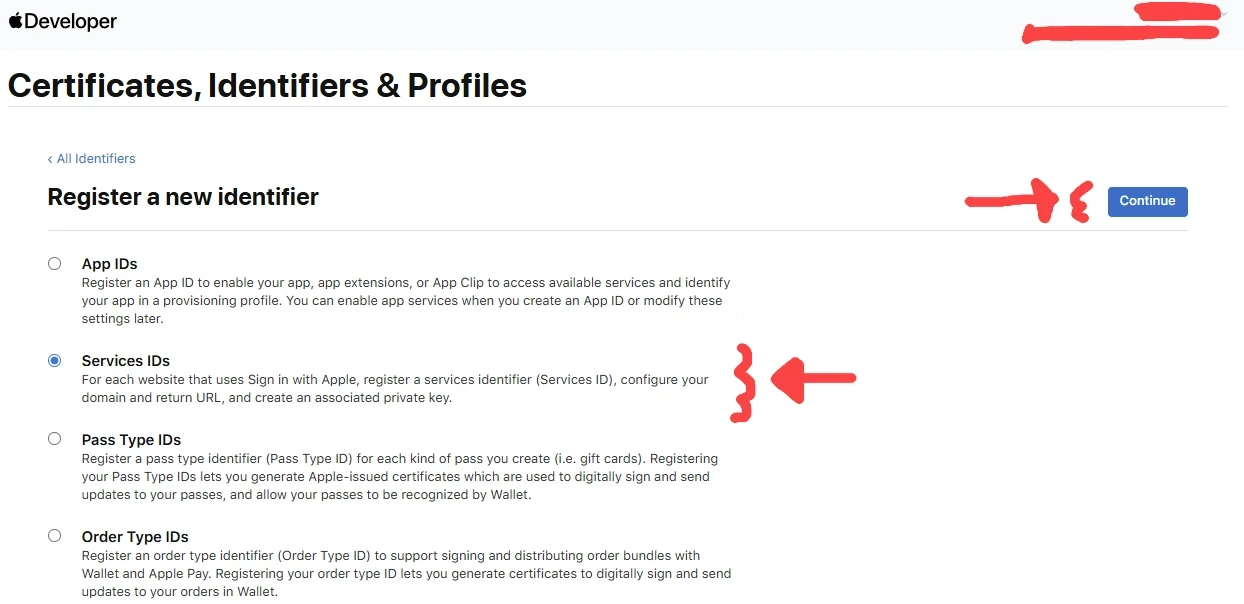
8. Select "Services IDs" and click on "Continue"
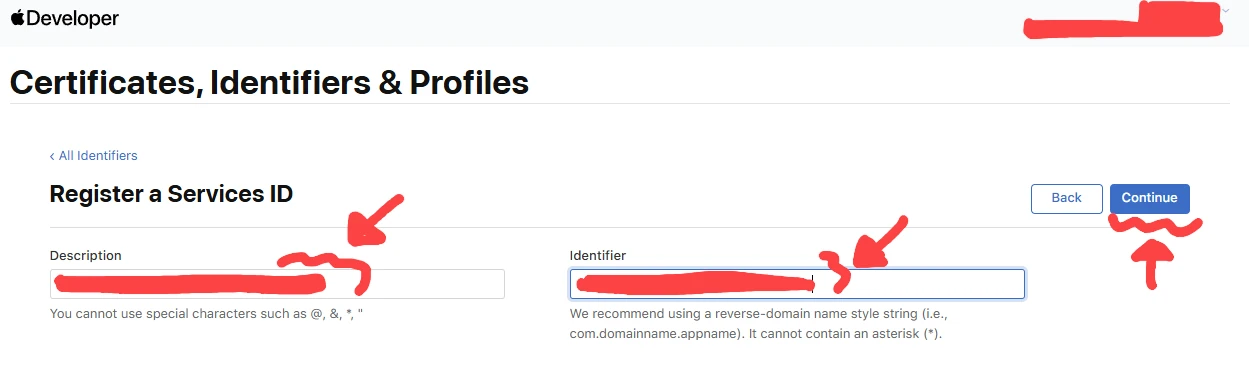
9. Enter a "Description" and an "Identifier"
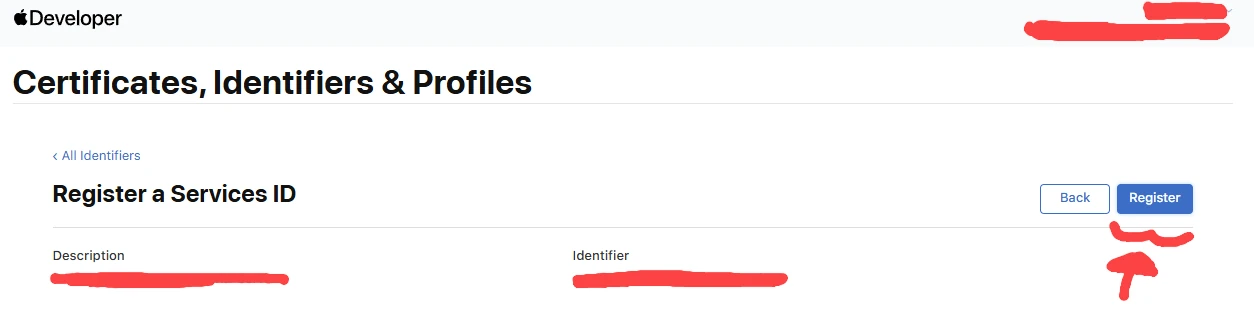
10. Click on "Register"
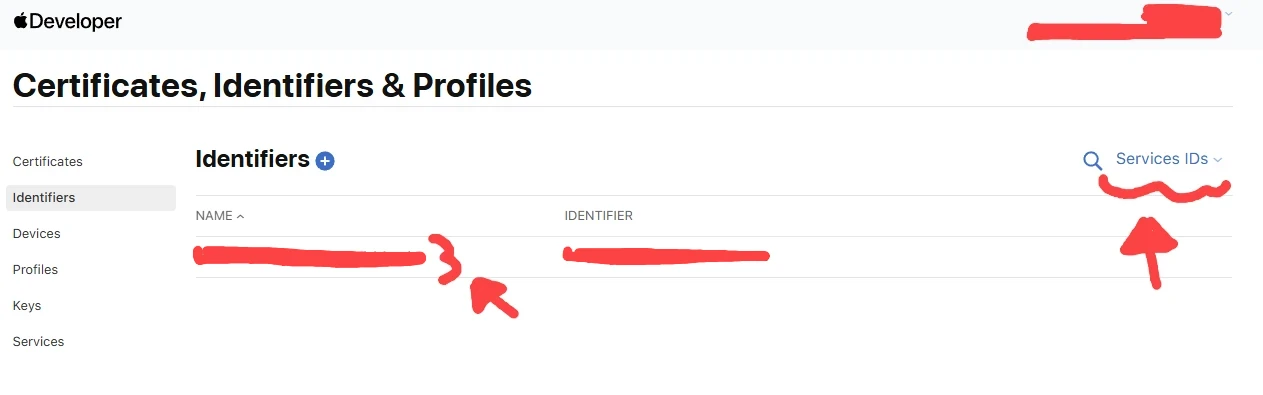
11. Make sure you are viewing the "Services" list and click on the Service Identifiers you just created
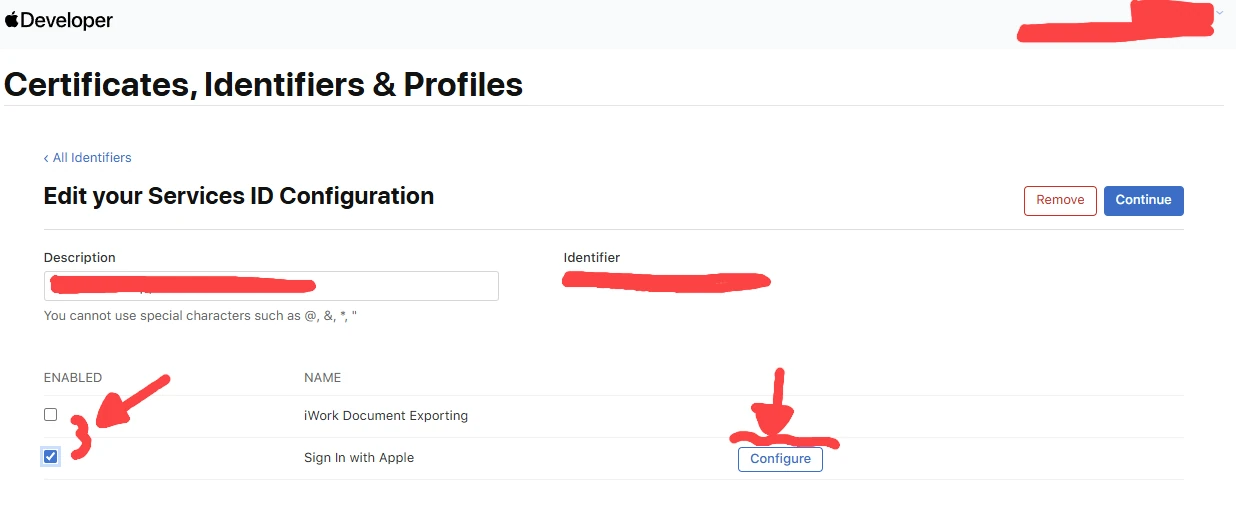
12. Check the "Sign In With Apple" and click on "Configue".
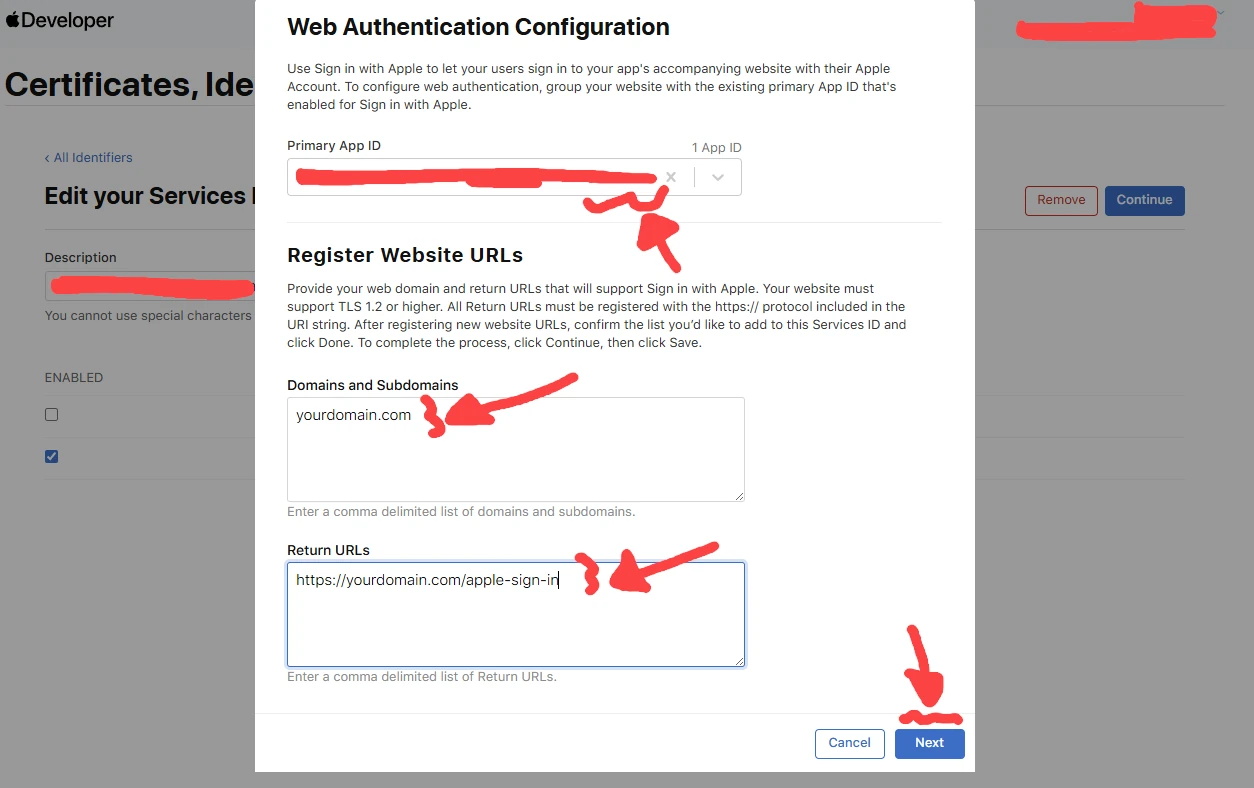
13. For "Primary App ID", select the App ID you created. For "Domain and Subdomain, enter your endpoint domain. For Return URLs, we recommend you enter an endpoint on your API ednpoint instead of redirecting to the frontend for better security practice. After it redirects to your API endpoint, you can redirect it back to the frontend. Enter the same URL to your CodeAuth project settings under the Apple social settings. Click Next.
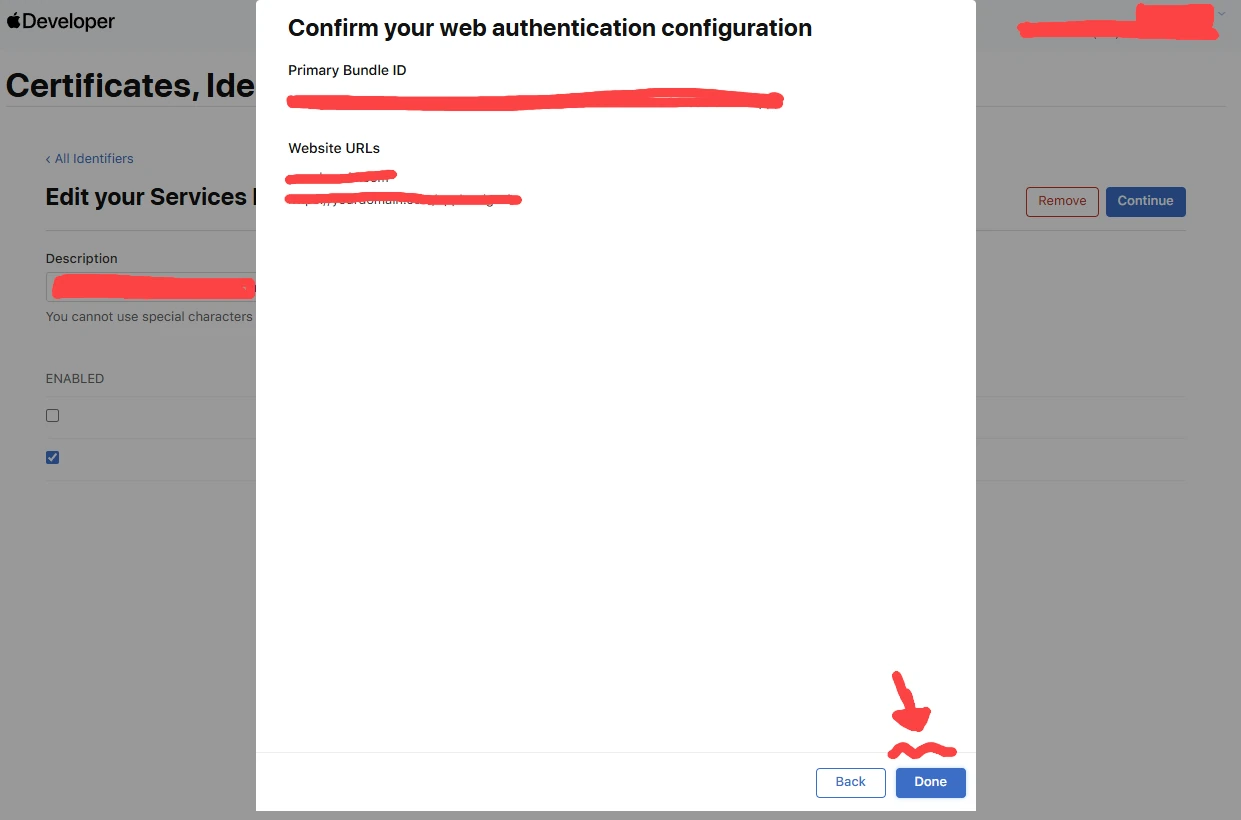
14. Click "Done".
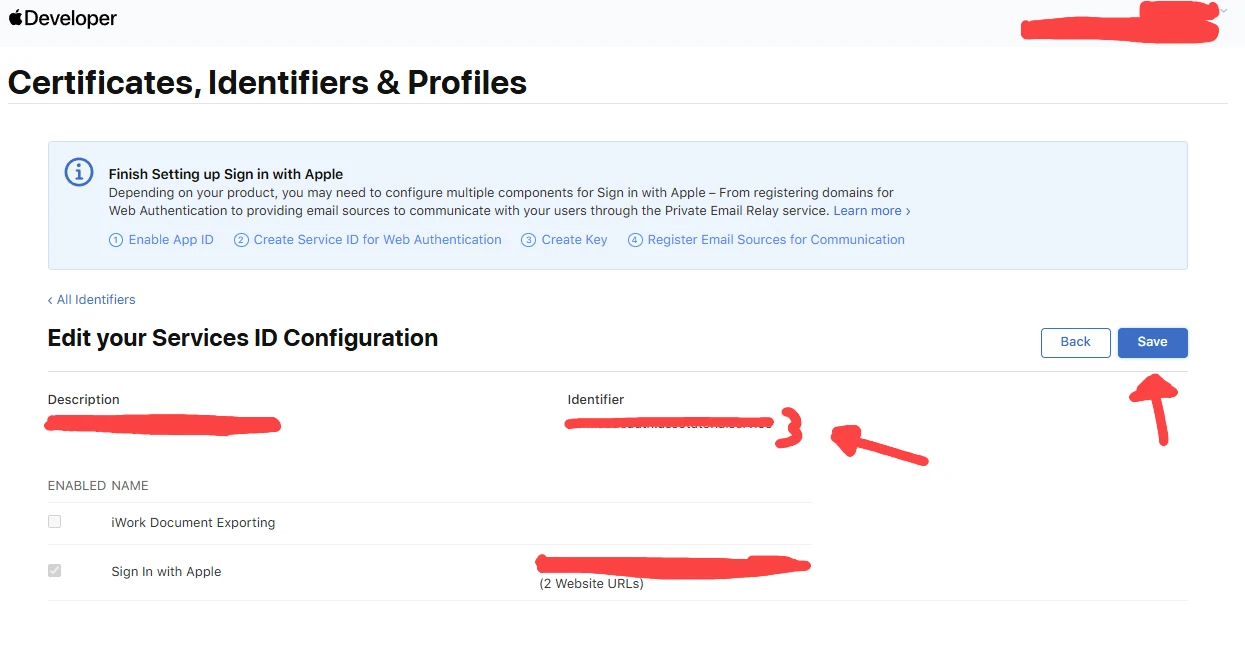
15. Click "Continue".
16. Use the "Identifier" ID for your Apple Services ID inside your CodeAuth project settings. Click "Save".